
Web Push
Documentation for the setup of Web Push
A solution that allows Web Push messages to be sent to users of your website who subscribe to such communication. Web Push schedules will be created and commissioned within the Campaign Manager Tool allowing the configuration of the text, image and web link. The schedules will be available for once only campaigns and notifications will be received for Firefox and Chrome subscribers only.
Setup
Before you startIn order to access the Web Push item in Admin Ops, you must have the following permission/role enabled:
Can access Admin Operations Web Push. Please contact your Customer Success Manager for more information.
Before Web Push notifications can be used in the Campaigns tool, you must complete setup in Admin Ops. This can be found in the Operations tab under the Admin tab.
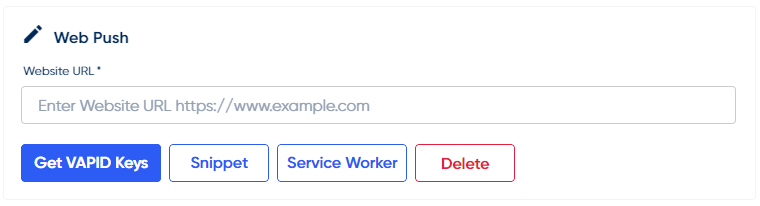
This item allows you to:
- Generate the VAPID Keys required to send Web Push Notifications.
- Generate the JavaScript Snippet to place on the website.
- Generate the JavaScript Service Worker to place on the website.
- JavaScript file that's installed on the user's browser to listen for web push messages from the Push Service to display to the user.
- Delete Web Push VAPID Keys.
After inputting the URL of the page you wish the Web Push notification to appear on, press Get VAPID Keys. This will generate a subject, public key and private key which can be viewed in the config tab. Once done, you can access the Snippet and Service Worker.
WarningDeleting will remove any subscribed users from the Web Push notification list.
Implementation
- Copy the snippet link into the head of your website. For example:
<script
	defer
  src="https://webpush.redeye.com/..../scripts/snippet.js"
></script>- Place the service worker file at the root of your website.
It is recommend from various UX best practice documents that you do not show the native browser notification to the user to invite them to sign up to Web Push notifications.
Instead, you should implement some behaviour that requires user interaction, for example a pop up message with a button asking the user to subscribe to Web Push notifications. This can be done easily by creating a button with the id "webpush-subscribe". No action is required on the button as our integration will handle this as long as the button id is matched. Example code:
<button id="webpush-subscribe" class="sub_btn">Subscribe</button>
After SetupOnce setup is complete, you can customise the Web Push notification in Campaigns. For more information, see schedules.
Updated over 1 year ago