
Shopify 🛒
Read our guide below on how to integrate your Shopify Store into RedEye.
Step One - Visit the Shopify App store to Install the RedEye App.
- Visit the following URL which will direct you to the Shopify App Store: https://apps.shopify.com/
- Using the search bar at the top of the page simply search for RedEye.
- You should now see the RedEye App in the search results as shown below.
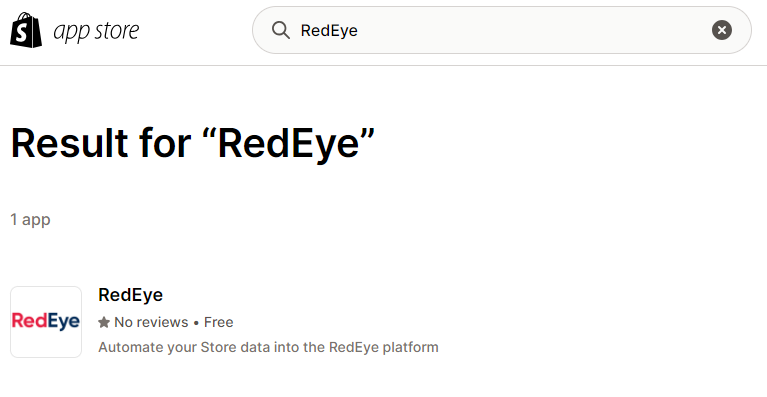
- Click on the RedEye app and press 'Install'.
- Once you have pressed 'Install' a new page will open prompting you that the RedEye app requires permission to your Shopify Store and customer information. Once you have read this please press 'Install app'.
Please contact the Integrations Team to get permissions added to your RedEye account in order to complete the following steps:
Step Two - Logging into RedEye's Shopify App
- Once the app has been installed and you have accepted the apps permissions, you will come to a login screen similar to the below.
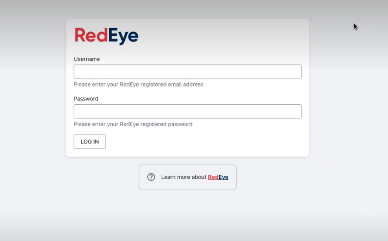
- Use your RedEye platform login details to login to the RedEye App.
- Once you have pressed 'Log In' you will either get a pop up to link your Shopify store to your RedEye Platform, **however if you have multiple platforms on your RedEye accounts you may see a slightly different message.
- Please contact the Integrations Team or your dedicated Account Manager to get access to the Client ID.
Step Three - App Dashboard and linking Customer, Product and Order Data
- Once a store is linked you will come to the RedEye's Shopify App Dashboard as shown below. Here you will be able to link and sync the three data types - Customer, Product and Order data.
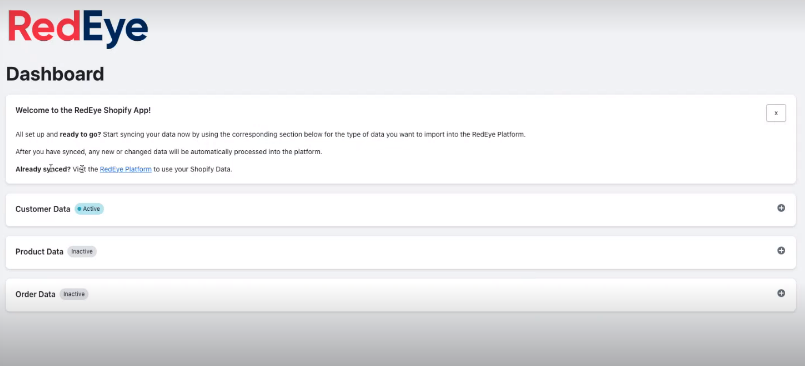
- If you would like to edit/choose what data/fields gets synced to your RedEye platform you can select settings under Customer Data and select/deselect the parameter names to suit your data needs.
- You will see as default that 'Customer data' is active, however you will still need to sync the data across to your RedEye platform. To do this simply click on the plus icon on the right hand side of customer data where you'll then be presented with a sync button. Clicking the sync button will then start to load the Shopify customer data over to your RedEye platform. By hovering over the sync button you will see the progress of the records loading.
- There is no need to create new parameters in your RedEye platform as these have already been mapped. You can check which RedEye parameters the data has been mapped to by clicking on the parameter name in Shopify then using the plus icon to expand the view as shown below.
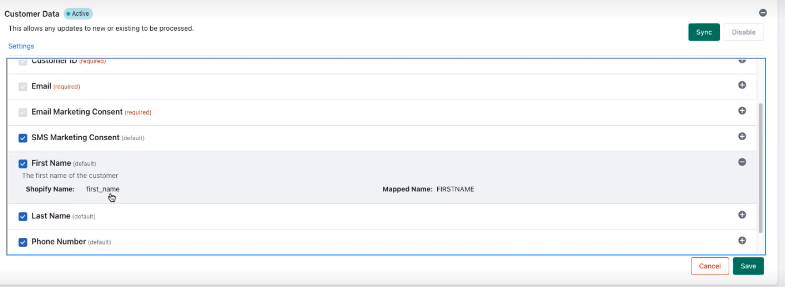
- Similarly to Customer data the process of syncing the data over for Product and Order data is the same. You can choose which parameters you want to send over to the platform and once you have reviewed this and confirmed which data you want to send you cans simply press 'Enable' for Product and Order data. Please ensure that you have chosen and reviewed what fields you want to load before pressing 'sync'.
- While all of the data sync's across to your platform you don’t need to actively stay on the page whilst the sync is happening. You can revisit the RedEye Shopify app at any time to check on the progress. Please note that data loading time will vary depending on the number of records you are loading.
Step Four - Conclusion
- You have now completed all of the steps to get your customer, product and order data into your RedEye platform. Please check the volumes in the RedEye platform by using the segment builder.
Updated over 1 year ago
Did this page help you?