
Creating Custom Rules
Custom Delivery Rules allow you to create rules on any parameter in the database
Creating Custom Rules
Accessing previously made rules
Previously made Custom Rules can be found under the right-hand toolbar Rules section, under the "User Created Rules" list.
You can search this list, the search is case-sensitive!
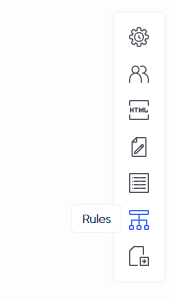
The Rules toolbar item
Creating a new custom rule 🎥
This section assumes you have knowledge of the segmentation toolPlease see the segment builder section of the help centre for a base understanding.
To create your own custom rule, you heading into the "New User Rule" section of the "Rules" section in the campaign toolbar.
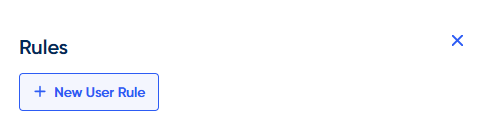
Click "New User Rule" to begin
From here you can use standard segmentation to create your rule, an example below shows excluding purchasers in the last 7 days:
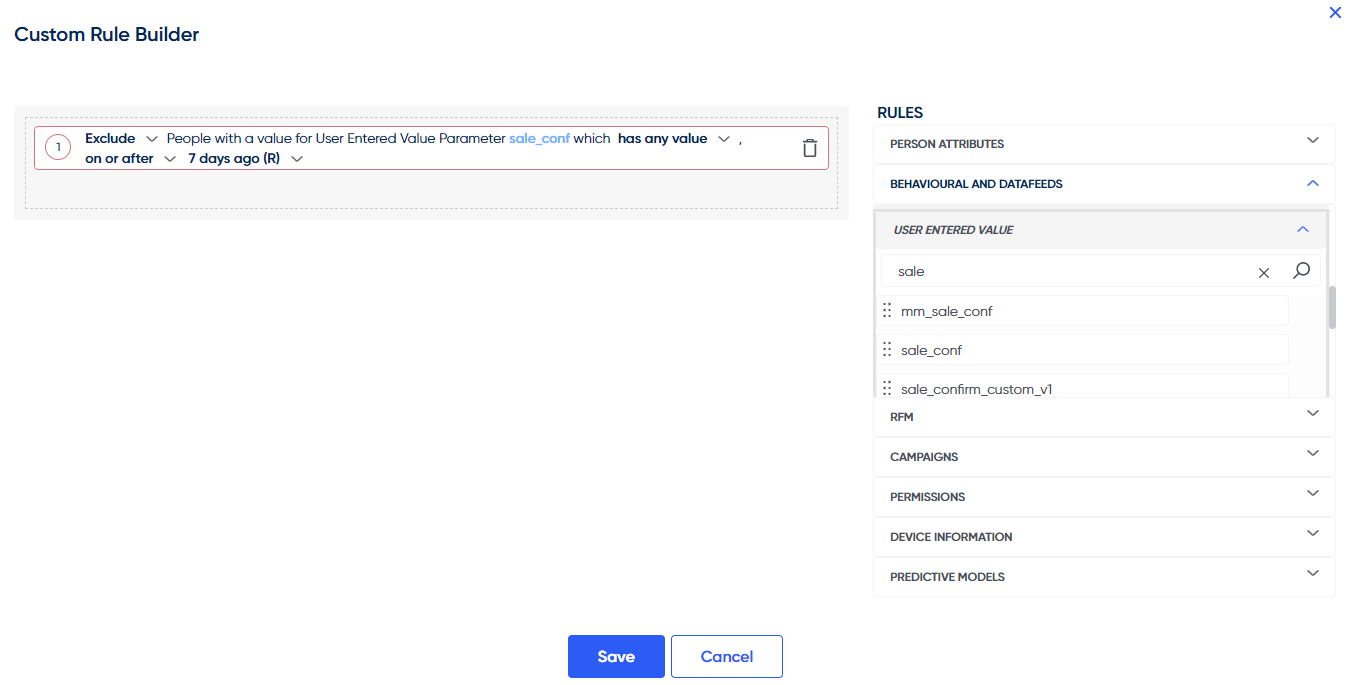
A rule created excluding anyone with a "sale_conf" (Purchased via website) value in the last 7 days
From here you can save the rule and drag it onto your schedule or rule item!
Multiple Delivery Rules per scheduleMultiple delivery rules per schedule will use the "AND" operator, meaning the user must match all criteria of your delivery rules.
For example:
"include everyone with postcode CW1" AND "include everyone with postcode CW9"
The recipients would have to meet both of these criteria... which of course they could not.
If you require the use of an "OR" operator, you must create a segment.
Updated over 1 year ago