
Search to Segment
Introduction
Search to Segment is a new enhancement to the Reporting tool which allows you to create a segment from your reporting searches.
A person identifier is required to build the segment meaning this is only available in the Person Data and the Segment to Person worksheet. The Segment to Person worksheet is currently being updated so is unavailable in the reporting tool.
We will be including PII in a future release such as email, custrefid and mobile however for this version we are only including personid which is an internal RedEye identifier for records with or without other PII values. This is required to build the segments but not required to be included in your search.
There will be controls in place when PII is enabled such as a user permission however the Search to Segment feature allows any user with extract capabilities to export the data using the current methods i.e. extract schedules to your SFTP, Google Ads or Social Media platform.
How to use it
The Person Data worksheet has valuable insights which you may not find in Segment Builder.
For example, it includes key dates such as first/last transaction date, first/last contact date and first/last visit date enabling you to find groups such as records that have visited the site for the first time in the last 30 days and have made their first purchase.
Formulas can be used to further drill down your searches for example looking at diff_days showing the days between certain date fields.
To begin your search, navigate to Reporting > Search, then choose your data source
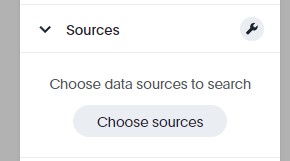
Select the Person Data worksheet and click "Done"

From here you can start to build your search. Using the example above, we will include personid to break it down per customer. We can then add in First Visit Date = Last 30 days and First Transaction Date = Last 30 days. To add to this we can include some filters to remove records without a first transaction date and only include those with an email address ( !=means 'not equal').
Note: Although the examples provided include "Email Address" or exclusions of email address, this field is not currently available and will be part of a future release as mentioned above. You can use the search examples without these fields.
Here's an example of the search terms to use:
PERSONID
First Visit Date = last 30 days
First Visit Date daily
First Transaction Date = last 30 days
First Transaction Date daily
First Transaction Date !={null}
sort by First Transaction Date daily descending
Email Address !={null}
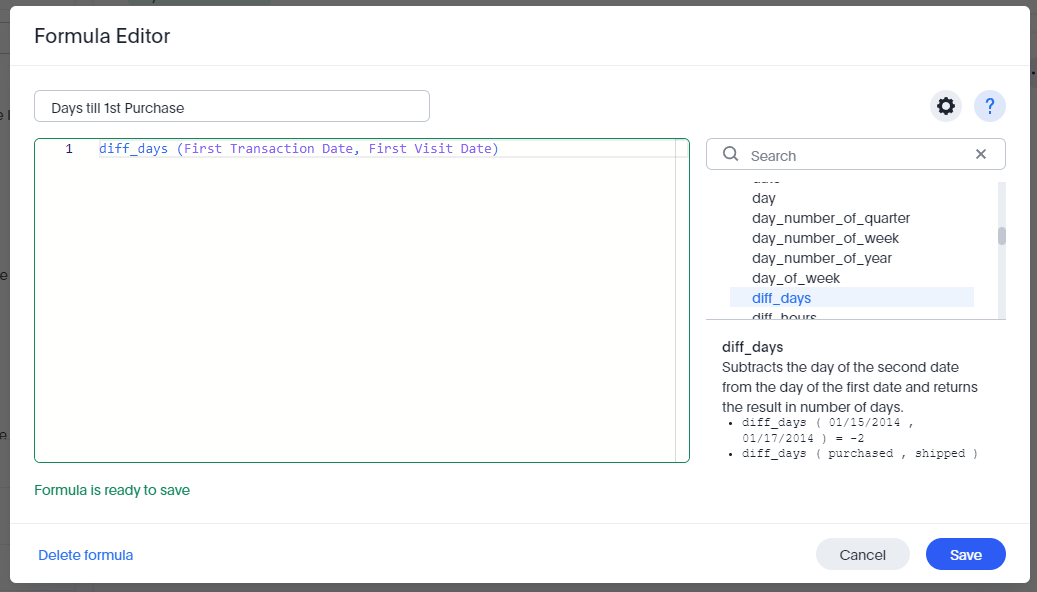
We can then add a formula to look at the amount of days per record between their first visit and first transaction for further insight. To do this, go to the Formulas section and either click the + or 'Create Formula".
This will open up the Formula Editor where you can build your formula. You will see all available formulas on the right side with examples of how to use them. In this example we have pasted the formula below. This will bring back the amount of days between the first transaction and first visit.
diff_days (first transaction date, first visit date)
Next you can rename your search then Save it.
Note:
- The extract button will only be enabled once you've saved your search.
- You cannot extract against the same segment. If changes are required, you will need to save and reopen your search then extract a new segment.
- You cannot use special characters in the Segment Name.
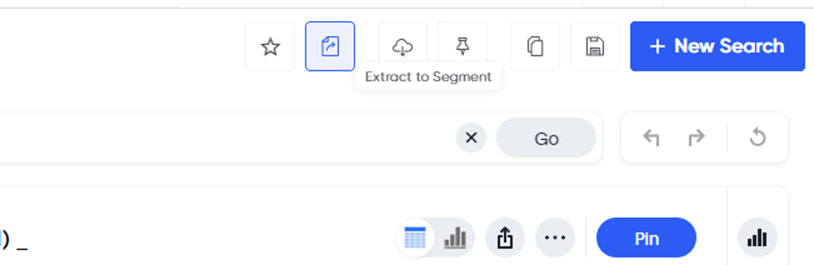
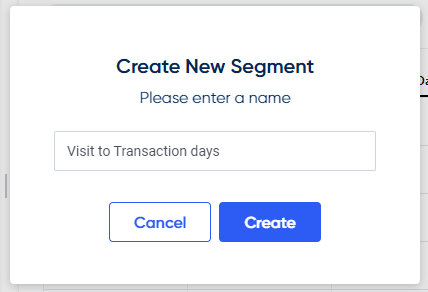
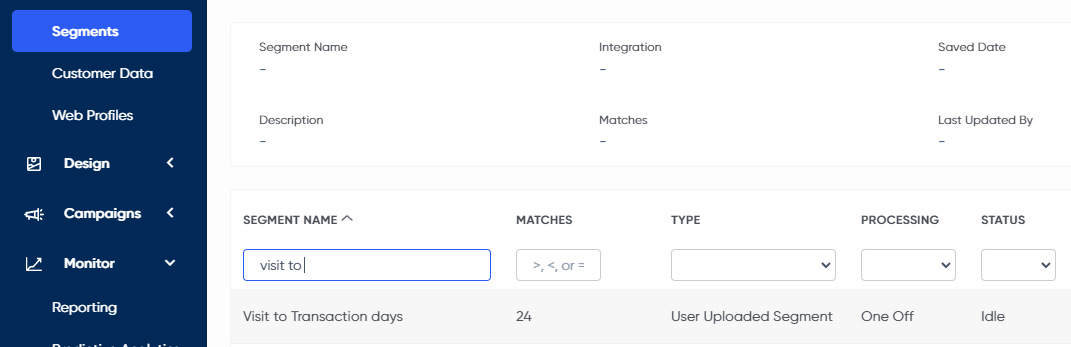
When clicking the extract button, you will be prompted to name your segment, you will then see this segment appear in Customers > Segments in the Segment List where it can be used in your campaigns and extracts. A segment description is applied showing the user, client name and date of the extract.
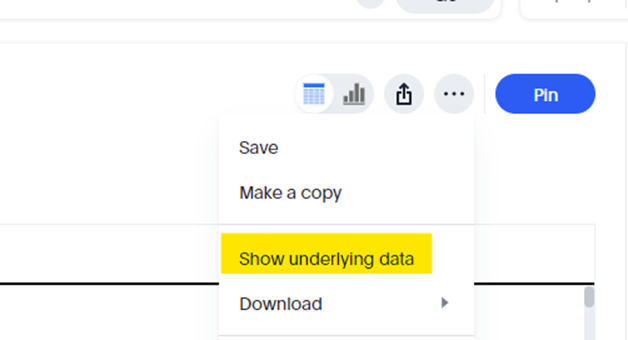
Note: You may notice a difference in volume between your search and your extracted segment, this is because the extract is using the underlying data in your search. You can view this count by clicking the 3 dot menu and selecting “Show underlying data”.
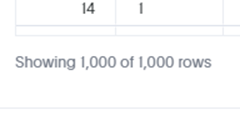
You may also see volume decreasing in your schedule calculations if you have not specified to exclude records without an email address. For example your search can show 100 records as it’s based on personid but the records with an email address is 90.
This means your extracted segment will show 100 but when adding it to an email schedule where it counts the amount of records it can send an email to, it will drop down to 90 (assuming no other exclusions such as permit, blacklist or invalid domains)
More search to segment examples:
Active customers with email permit who have visited the site this year but have not been contacted
Email Address
Email Address != {Null}
Email Permit=1
Last Visit Date daily
Last Visit Date = year to date
Total Purchases
Total Purchases >= 1.0
Last Contact Date daily
Last Contact Date before this year
First Name
Last Name
Total Purchase Spend
sort by Total Purchase Spend descending
High spend customers (VIP's) with 10 or more purchases this year
Email Address
Email Permit
Email Address != {Null}
Email Permit = 1
First Name
Last Name
Total Purchases
Total Purchase Items
Total Purchase Spend
Total Purchases >= 10.0
First Contact Date daily
First Transaction Date daily
STO Click Hour
STO Response Hour
Last Visit Date daily
Last Visit Date after 01/01/2024
AOV
Average Items Per Purchase
Days Between First Contact and First Purchase
sort by Total Purchase Spend descending
Formulas:
AOV
Total Purchase Spend / Total Purchases
Average items per purchase
Total Purchases / Total Purchase Items
Days between first contact and first purchase
diff_days (First Contact Date , First Transaction Date)
Visited the site and made a purchase within the last 90 days but have not been sent a campaign
Person Id
Email Permit=1
Last Transaction Date
Last Transaction Date = last 90 days
Last Visit Date
Last Visit Date = last 90 days
Last Contact Date
Last Contact Date before last 90 days
Total Purchases
Total Purchase Spend
Updated over 1 year ago