
Google Ad Words
Please follow the following steps to complete the Google Ads Integration:
- Please login to your Google Ads account. This can be done using this URL https://ads.google.com/aw/overview
- Please take note of your Google Customer Client ID, this is found within the top right-hand corner of your Google Ads Account and is in the format of xxx-xxx-xxxx
- Now we need to create a new client project within Google’s API tool. Use the following URL to go to this tool. https://console.cloud.google.com/
- Firstly, navigate to ‘Select a Project’. Then click on ‘New Project’.
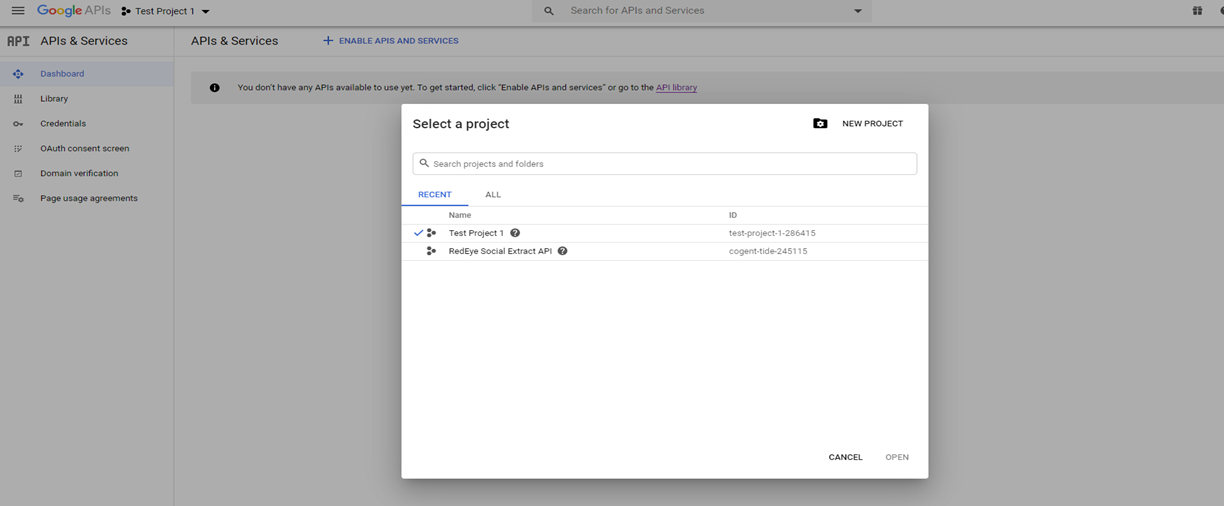
- The first step is to give the new project a name. Simply call the project ‘RedEye Social Extracts API’. You do not need to give a location so please ignore it. Now click ‘Create’.
- Now that you have created a new project please navigate to API’s and Services. This can be found using the navigation bar (three horizontal lines) on the left-hand side.
- Once you have reached the API page please click on ‘Enable APIS and Services’. This can be found near the top of the page.
- Using the search bar on the next page please search for ‘Google Ads API’.
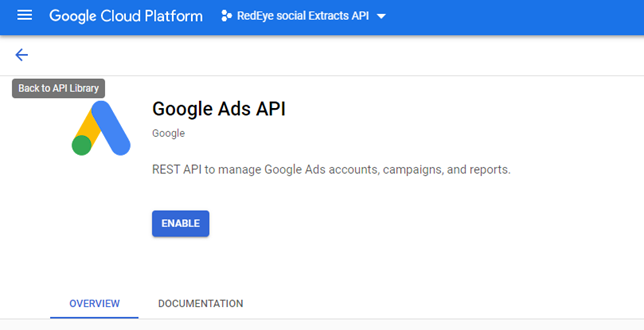
- Please click on the Google Ads API result which will take you to this page shown below. Please click ‘Enable’.
- Now navigate to ‘Credentials’ which is found on the navigation bar on the left-hand side of the tool.
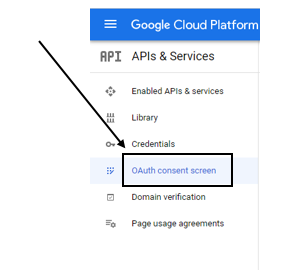
- The first step here is to complete the consent screen. You can complete this by clicking on ‘OAuth Consent Screen’.
- Now select ‘External’
- Now that the OAuth Consent Screen form has loaded, give your application a name. Simply call the application ‘Social Extract API’. Please note that Google recommends that you do not add any company name to this section.
- Add your work email address as the ‘User Support Email’. Also use the same email address for the ‘Developers contact information’ at the bottom of the form.
- This is all we need to complete for this section. Now that you have added the application name and two email addresses scroll down and press ‘Save and continue’.
- The next section is ‘Scopes’ please ignore this and press ‘Save and Continue’.
- ‘Optional Info’ is the next part of the setup. Please ignore this and press ‘save and continue’.
- Navigate back to the Consent Screen by clicking ‘OAuth Consent Screen’ on the navigation bar on the left-hand side.
- The application should be in a testing status. We now need to publish the application. Please click on ‘Publish App’ and click confirm on the pop up.
- Navigate back to the credentials page via the left-hand side navigation bar and click on ‘Create Credentials’ and select ‘OAuth Client ID’
- Now we can start populating the OAuth Client ID. Firstly choose the application type ‘Web Application’. And name the OAuth Client ID ‘RedEye social Extracts API’. Please ignore ‘Authorized JavaScript Origins’ and add the ‘Authorized redirect URLs’ with this URL: https://developers.google.com/oauthplayground
Your OAuth Client ID should now look like this:
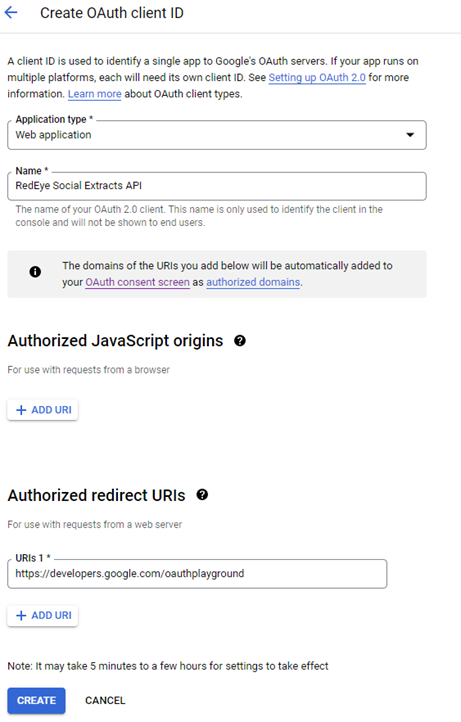
- If your OAuth Client ID looks like the example, please click ‘Create’.
- Now that you have completed the application type a new pop up including your Client ID and Client Secret should appear. Please copy this information along with your Google Client ID and send it to one of your Integrations Team members below:
[email protected] - Once you have completed this, please let the Integrations team know and we will supply a time sensitive URL. This URL will generate a refresh token which you will need to send to the Integrations Team to link RedEye with your Ad Words account to complete the integration.
Updated over 1 year ago
Did this page help you?