
Segment Rules
About Segment Rules 🎥
Segment Builder provides a number of rule groups which represent the data that can be included in a segment. Below is a quick summary video describing some of the rule groups and the parameters that belong to each group:
Favourite Rules
You can favourite rules that you use frequently in Segment Builder.
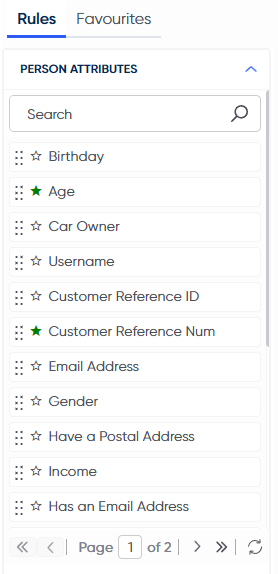
Double click the Star icon to favourite a rule
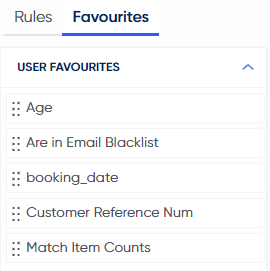
Your favourited rules can be found in the 'Favourites' tab
Person Attributes
Relate directly to the recipient, and can be dragged directly on to a rule because they have no sub-parameters. For example; age.
Email Engagement
A pre-determined segment that can be used to create a rule depending on how much engagement a recipient has had with a previous email. Each of these can be dragged directly on to a rule because they have no sub-parameters. For example; emailed once representing recipients that had already been emailed once.
List Loaded
Allows you to create a rule using a list that has been manually uploaded to Contour. Each of these can be dragged directly to a rule because they have no sub-parameters. For example; you can load a very specific list into Segment Builder, then add further rules to create a more filtered list of recipients.
Advanced
Contains segments that have not been made with Segment Builder, each of which can be dragged directly on to a rule because they have no sub-parameters.
Behavioural and Datafeeds
Determined by the behaviour of the recipient on the website or by data which they have entered or selected. Drill down through sub-categories to the lowest level before dragging the parameter over to create a rule. Here is a brief explanation of each sub-option:
- Boolean - Anywhere within the site that a recipient has been required to select yes or no. For example; if a recipient has indicated that they want to receive a magazine subscription or newsletter.
- Content Groups - A collection of pages that all relate to the same thing. For example, a holiday content group comprising a page of swimwear, a page of sunglasses and a page of beach towels on a retail website. A recipient who had visited any of the pages in the group would feature in the holiday content group, so you would be able to drag and drop this content group into a rule to form part of your segment.
- Date - Anywhere within the site that a recipient has been required to either select or enter a date. For example; the day they will be flying to go on holiday.
- Key Action / Event - A particular activity within the website that has been determined to be 'key', which is broken down into a further three parameters:
- Key Action Type - Identifies the key action from the website. For example; a purchase.
- Key Action Detail - Further detail about the key action. For example; what was purchased.
- Key Action Element - Split into three options: occurrences, quantity and revenue. For example; the number of times a purchase was made, how much was bought, how much was spent.
- Number - Anywhere within the system that a recipient has been required to either select or enter a number. For example; number of kids.
- Pages - A parameter showing any pages that have been visited by the recipient.
- Pages Entered - The page at which a recipient entered the website.
- Pages Exited - The page at which a recipient exited the website.
- Referrer - The website that a recipient was on prior to entering the current website.
- Revenue - Any revenue generated from the recipient's visit to the website. For example; purchases.
- User Entered Value - Any free format fields entered by the recipient.
- Revenue - Any revenue generated from the recipient's visit to the website. For example; purchases.
RFM (Recency, Frequency and Monetary Value)
Relates to how recently the recipient accessed the website, how frequently they accessed the website, and how much they spend via the website. Drill down through the sub-options before dragging the parameter over to create a rule. An example RFM parameter would be Visit Frequency to target all the recipients who have only visited the website once.
Campaigns
This group contains options relating to the recipient's reaction to or how they were involved in a previous campaign. The options are as follows:
- Clicked - Target people who have clicked the previous email.
- Opened - Target people who have opened the previous email.
- Responded - Target people who have responded to the previous email.
- Been Sent - Target people who have been included in an email send. Note: this includes people that have been included in the email build process, they may not have received the email if the schedule was stopped before the send was complete. In this case, please use "Been Transmitted"
- Been Transmitted - Target people who have been sent a previous email.
- Been Extracted - Target people who were extracted in the previous direct mail schedule.
- Not Been Transmitted - Due to current limitations, this parameter will always return a zero amount of recipients.
For each option, you must specify the previous campaign, schedule and segment that the action applies to.
Permissions
Options relating to the permissions that the recipient has granted, each of which can be dragged directly on to a rule because they have no sub-parameters. Choose from the following permissions:
- Have opted-out of SMS - Filter by recipients who do not want to receive SMS messages.
- Have Email Permission - Filter by recipients who are willing to receive emails.
- Have Postal Permission - Filter by recipients who are willing to receive direct mail communication.
- Historical Email Permit - Filter by recipients where their permission status was either 0, 1 or NULL on a particular day in the past but could have since updated.
- Have no Facebook permission - Filter by recipients who do not want to receive marketing communication in Facebook.
- Have no Push permission - Filter by recipients who do not want to receive Push messages on their device.
- Registered a Push Application - Filter by recipients who have registered their company's app for Push messages.
- Are in Email Blacklist - Filter by recipients who's email address is excluded from receiving any communication by email.
- Are in SMS Blacklist - Filter by recipients who's mobile number is excluded from receiving any communication by SMS message.
- Have no Google Permission - Filter by recipients who do not want to receive marketing communication when using Google.
Device Information
Options relating to the device, operating system and browser from which the recipient has accessed the website. Each of these can be dragged directly into a rule since they have no sub-parameters. For example; the Device option which targets recipients who have accessed the website with a specific device such as mobile.
Data Collections
Relates to data that can be used to segment on particular transactions. To enable this option you need to be storing transactional data. For example; a holiday booking with a booking date and destination would match to each rule separately unless the data is combined into transactions containing both.
Product Attributes
Transactional data for your products. You will need two new tables for the transactional order and all the product IDs, which allows you to segment on customers who have purchased particular items within a specific time frame.
This feature is enabled on a per client basis. If you would like access to Product Attributes, contact your Customer Success Manager.
Predictive Models
Each customer in your database is assigned a probability score. These scores are available as parameters in Segment Builder to build a rule for your campaign.
- Unsubscribe Score - How least or most likely an individual will unsubscribe.
- Second Purchase Score - How least or most likely an individual will become a second purchaser.
- Lifetime Value - The predicted spend of an individual.
- First Purchase Score - How least or most likely an individual will make a first purchase.
- Lapse Score - How least or most likely an individual will become a lapsed customer.
- VIP Score - How least or most likely an individual will become a VIP customer.
Segment Splits
If you have split a segment, the splits appear in this rule section if you want to include or exclude segment splits from a segment.
Updated over 1 year ago