
Accessibility Checker
The accessibility checker allows you to run accessibility checks on a HTML template using the Litmus V3 API.
Overview
Our accessibility checker, powered by Litmus, ensures your emails are accessible to all users, including those with cognitive or visual impairments. It helps identify issues like insufficient colour contrast, missing alt text, and problematic font sizes, making your emails compliant with accessibility standards.
Why use an Accessibility Checker?By addressing any accessibility issues, you enhance user experience, broaden your audience reach, and demonstrate inclusivity and social responsibility through ethical coding.
Using an accessibility checker boosts engagement rates but also protects your brand from challenges related to accessibility compliance.
The Accessibility Checker will analyse templates for the 40 most common accessibility issues, such as:
- Alt-text: Alt-text helps screen readers accurately describe images within your email.
- Language: Without a language HTML attribute, screen readers will assume the email is in the subscriber’s selected default screen reader language. If your email is not in that language, the screen reader may not accurately transcribe your message.
- Content-type: Specifying the content type is important for screen readers as it allows them to accurately identify special characters. The most common content type is UTF.
- Heading hierarchy: Maintain a consistent outline of your email content for assistive technologies by always using heading tags in a logical sequence. This enables screen readers to efficiently navigate an email and begin reading at any point the subscriber chooses.
- Text justification: Many people with cognitive disabilities have trouble with blocks of text that are justifiedor aligned to both the left and the right margins.
- Table-roles: Specifying a table role is important so screen readers can identify when your table only serves a design or a layout purpose and it will not read every column and row cell aloud.
- Visual Impairment Filters: Ensure all of your content is optimized for your audience, including those with color vision deficiency.
Where to access the Accessibility Checker
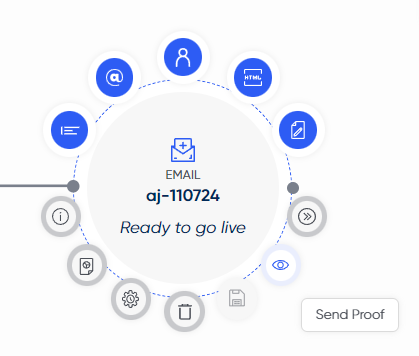
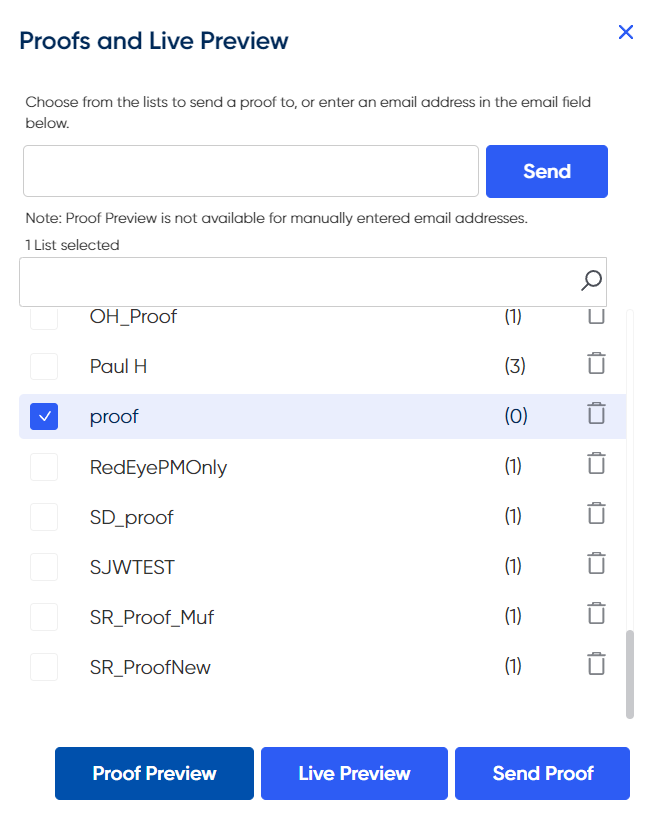
The checker can be accessed via the Proof Preview on the chosen Email Schedule.
How to use the Accessibility Checker
Select an email address from the proof data list to view the proof, then select 'Check Accessibility' from the menu.
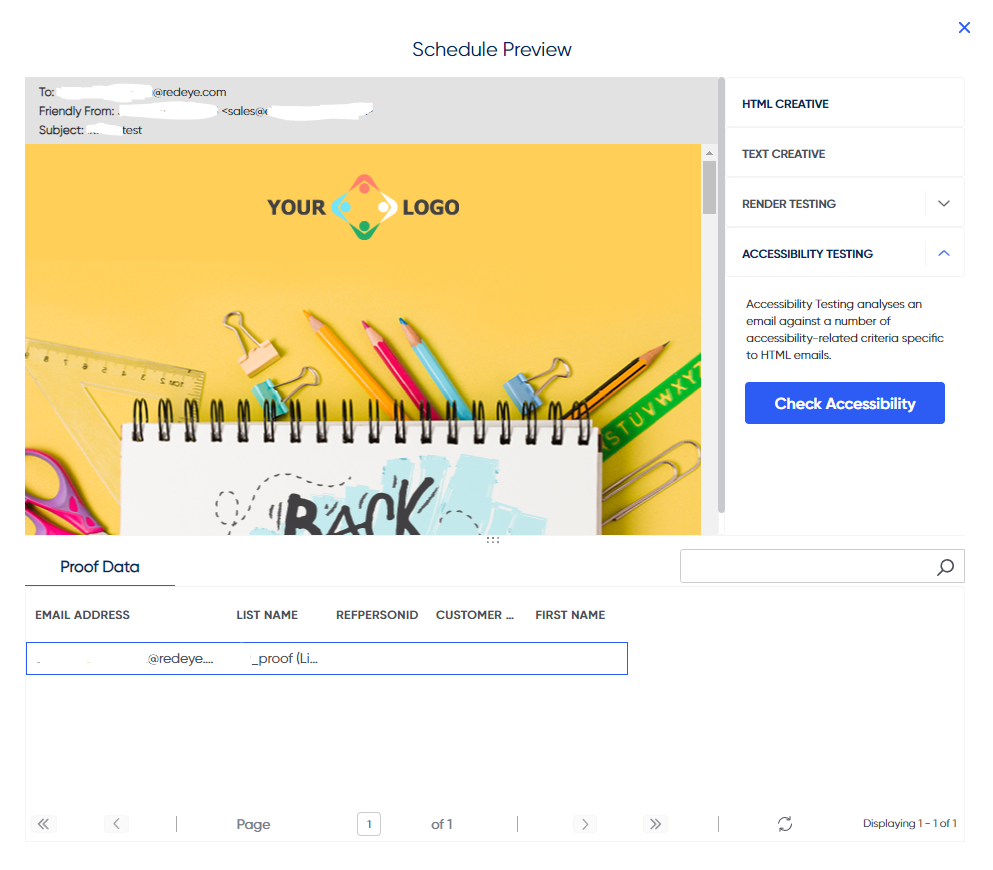
The Accessibility Checker window displays information on how many areas have been checked, and which areas your email creative has passed or failed in. Results can be downloaded via the icon in the top right of the window.
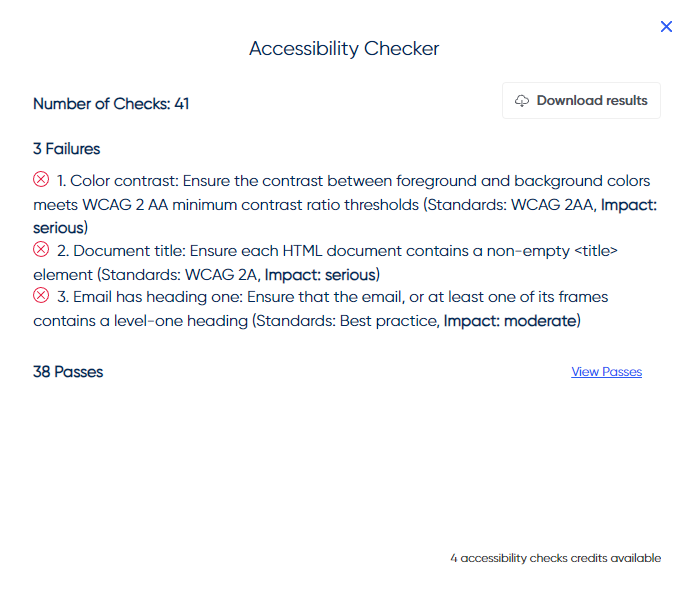
The client's available credits can be seen in the bottom right of the window.
Each client has 10 credits available per monthIf you'd like to increase your credit limit, speak to your Customer Success Manager
Updated over 1 year ago