
Two Factor Authentication (2FA)
Documentation for how to use 2FA to log-in to RedEye
This guide helps you set-up Two Factor Authentication (2FA) on your mobile device to log-in to RedEye. From June 2024 2FA log-in is a standard configuration for all users to enhance security.
What you needYou must install an authenticator app for your phone or browser. Our recommended phone apps are:
Microsoft Authenticator
Android https://play.google.com/store/apps/details?id=com.azure.authenticator&hl=en_GB&gl=US
IOS: https://apps.apple.com/gb/app/microsoft-authenticator/id983156458
Google Authenticator
First time setup
These steps will demonstrate how to use the Google Authenticator app for RedEye 2FA.
When first accessing RedEye after 2FA is enabled, you will be presented with a QR code:
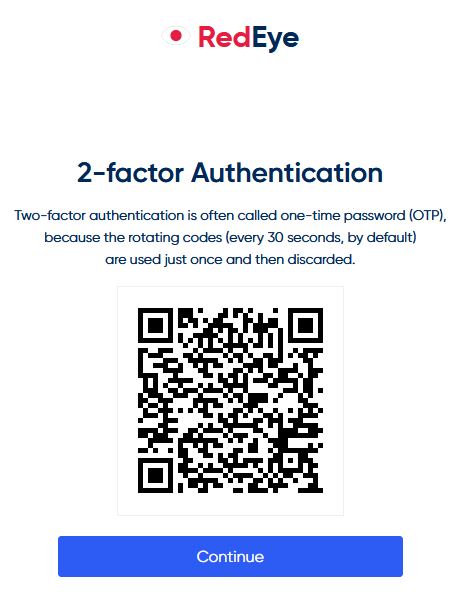
NoteThe following screens show you the process to set-up your 2FA using Google Authenticator.
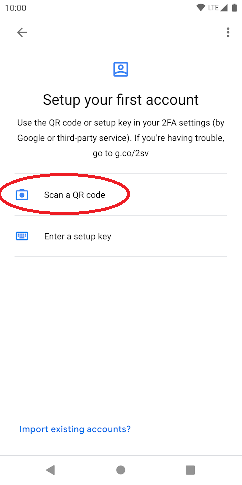
On first use of the Google authenticator app, you will be prompted to set up your account.
Select the QR code option:
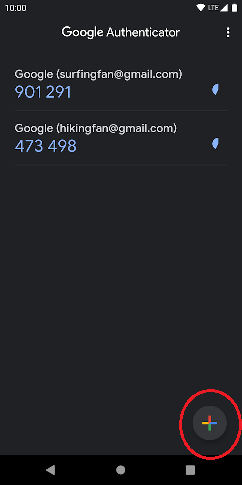
If you already have active accounts in your app then for subsequent 2FA entries, select the 'plus' icon as shown in the screenshot, followed by 'Scan a QR code':
After scanning the QR code, an account will be created under the name 'RedEye-[YOUR-ACCOUNT-NAME]'.
This account is unique to you and your log-in. Every 30 seconds, a new 6-digit code will be generated.
Only the code shown currently in the authenticator is valid. Enter the code displayed in the authenticator app into RedEye.
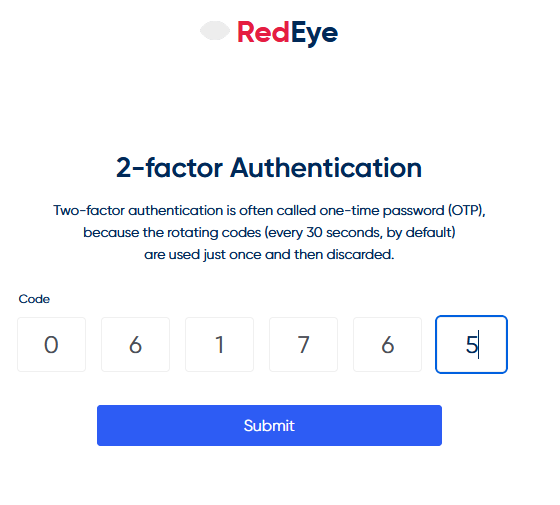
After entering the code and pressing 'Submit' in RedEye, you will briefly see the following window (for approximately 5 seconds), before being redirected to the homepage dashboard.
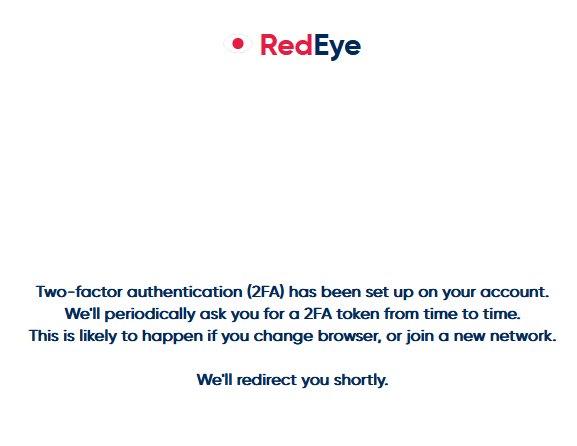
After first setup
Now that Two Factor Authentication (2FA) is enabled on your account you'll be periodically redirected to the log-in screen to enter a code from your authenticator app after you've entered your username and password.
If you log-in from a new browser or device you'll be presented with the 2FA each and every time:
TroubleshootingReplacing your existing entry
It may occasionally take a few minutes for the 2FA details to be saved. If you log-out again, and quickly log in using a new browser or network, you may be prompted to scan a QR code again.Do not be alarmed in this case, simply repeat the above steps to scan the new QR code.
The authenticator app will ask whether to replace the existing entry, or keep both.
Select 'replace', as the new 2FA secret generated will replace the existing one in the database.
2FA Reset
Should you find yourself unable to access your 2FA code, for example:
- If the authenticator app is deleted
- Or your 2FA entry in RedEye is deleted
- Or you have replaced your mobile phone
Please contact your Customer Success Manager who will reset your 2FA account allowing you to register using your new device.
Updated over 1 year ago